
Endpoint Privilege Manager Part 3: Management & Troubleshooting
Monitor EPM activity, generate reports, and fix common issues.
Endpoint Privilege Manager Part 3: Management & Troubleshooting
You’ve enabled EPM and created policies. Now comes the ongoing work: monitoring what’s happening, generating reports for auditors, and fixing issues when things go wrong.
Let’s cover it all.
Monitoring Activity
EPM provides several ways to see what’s happening in your environment.
Activity Logs
The first place to check when something goes wrong—or just to verify operations are working.
Screenshot: 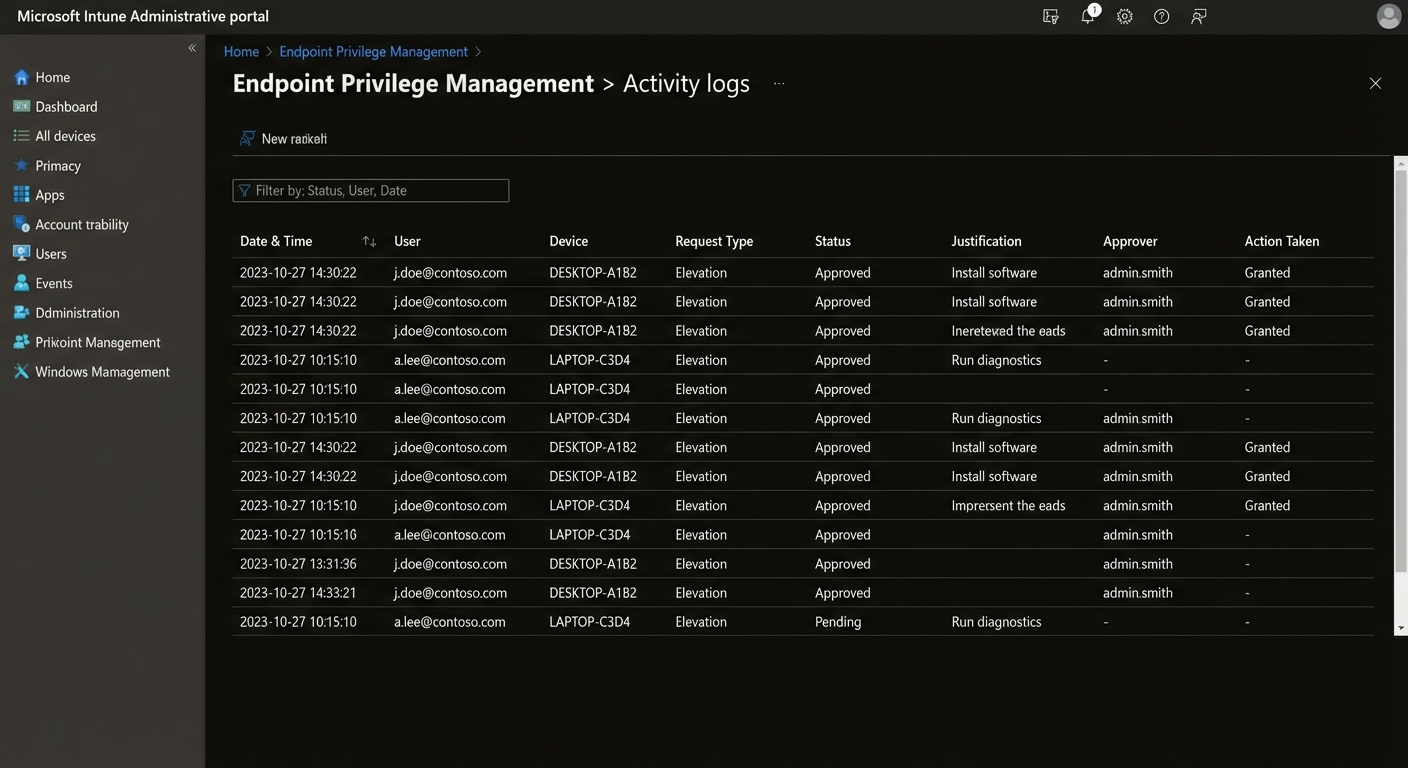
To access:
- Go to Microsoft Endpoint Manager
- Navigate to Devices → Endpoint Privilege Management → Activity logs
What you’ll see:
| Column | Description |
|---|---|
| User | Who requested elevation |
| Device | Which device |
| Application | What was being run |
| Request time | When request was made |
| Status | Approved, Rejected, Expired |
| Duration | How long access lasted |
Filtering Logs
Use filters to find specific events:
- Date range – Last 24h, 7 days, 30 days, custom
- User – Specific user or group
- Device – Specific device
- Status – Approved, Rejected, Expired
- Application – Specific app or script
Example filter for troubleshooting:
Status: Rejected
Date: Last 7 days
User: john.doe@contoso.com
Generating Reports
Usage Summary
Get an overview of EPM usage:
- Go to Endpoint Privilege Management → Overview
- View key metrics:
- Total elevation requests
- Approval rate (% approved)
- Most used applications
- Most active users
Export Reports
For deeper analysis or audit purposes:
- Reports → Export
- Choose format: CSV or PDF
- Select date range
- Include details:
- User information
- Device information
- Application details
- Timestamps
- Approval details
Screenshot: 
Custom Reports
Need something specific? Use Microsoft Graph API:
# Get EPM activity via Graph API
# Requires: Microsoft Graph API permissions

# Install Graph module if needed
Install-Module Microsoft.Graph -Scope CurrentUser

# Connect to Graph
Connect-MgGraph -Scopes "DeviceManagementConfiguration.Read.All"

# Get EPM activity
Get-MgDeviceManagementDeviceManagementIntentAssignment `
    -DeviceManagementIntentId "EPM-POLICY-ID"
Troubleshooting Common Issues
Issue 1: Policy Not Applying to Devices
Symptoms:
- Devices show in Endpoint Manager but no EPM policy
- Users don’t see elevation requests
Troubleshooting steps:
-
Check device enrollment status
Go to Devices → All devices Verify: Last check-in < 24 hours Verify: Enrollment state = Enrolled -
Verify policy assignment
Go to Policies → [Your Policy] → Properties Check: Assignments are configured Check: Devices/users are in included groups -
Check EPM compatibility
Devices must be: - Azure AD joined OR - Hybrid Azure AD joined Run on device: dsregcmd /status -
Sync device
On device: Start → Settings → Accounts → Access work or school
Click: Sync
Issue 2: Users Can’t Request Elevation
Symptoms:
- User tries to elevate but gets no prompt
- No request appears in Activity logs
Troubleshooting steps:
-
Verify user is in correct group
Check: User is in policy's Included groups Check: User is NOT in Excluded groups -
Check policy status
Go to Devices → Endpoint Privilege Management → Policies Verify: Policy shows "Deployed" Check: Last modified date is recent -
Verify user has required license
Users need: - Intune Plan 1 or 2 license, OR - Microsoft 365 Business Premium -
Check device compliance
Devices must be:
- Compliant (or marked as compliant if no compliance policy)

Check: Devices → Compliance
Issue 3: Approval Not Working
Symptoms:
- Requests show “Pending” indefinitely
- Approvers not receiving notifications
Troubleshooting steps:
-
Verify approver configuration
Go to Policy → Settings → Approval Check: Approvers are specified Check: Approvers have correct permissions -
Check email notifications
Verify: Approver email is correct Check: Email not in spam Verify: SendGrid/notification service active -
Manual approval test
As admin, go to: Devices → Endpoint Privilege Management → Approvals Manually approve a pending request -
Check approver permissions
Approvers need Intune role with:
- Endpoint Privilege Management: Approve requests
Issue 4: Elevation Failures
Symptoms:
- Request approved but elevation fails
- User gets error when running elevated app
Troubleshooting steps:
-
Check application compatibility
Not all apps support elevation: - UWP apps generally don't need elevation - Some apps block elevation for security - Check app documentation -
Review error details
In Activity logs: - Expand the failed request - Read the error message - Note the error code -
Check for conflicts
Possible conflicts: - Application Control policies - Windows Defender Application Control - Third-party security software Test: Temporarily disable other policies -
Verify local admin status
After successful elevation, verify:
- User should now have admin context
- Check: whoami /groups
Issue 5: Password Rotation Not Working
Symptoms:
- Scheduled policies not rotating passwords
- Old password still works
Troubleshooting steps:
-
Verify scheduled policy is active
Go to Policies → [Scheduled Policy] Check: Status = Deployed Check: Next rotation time -
Check rotation logs
Activity logs → Filter by: - Event type: Password rotation - Date: Expected rotation date -
Verify device connectivity
Devices must connect at least weekly Check: Last check-in time -
Review password policy
Verify complexity requirements match:
- Minimum length
- Character requirements
Best Practices for Ongoing Management
1. Regular Monitoring
- Daily: Check Activity logs for errors
- Weekly: Review usage summary
- Monthly: Generate compliance report for leadership
2. Policy Tuning
Based on monitoring data:
- Adjust elevation duration if users constantly need more time
- Add frequently used apps to approved list
- Refine approval workflows based on request volume
3. User Communication
Keep users informed:
- Explain when and how to request elevation
- Provide instructions for Company Portal access
- Set expectations for approval times
4. Documentation
Maintain internal docs:
- Current policy configurations
- Approval workflows
- Troubleshooting procedures
- Contact info for EPM admins
5. Audit Preparation
For compliance audits:
- Export reports regularly (monthly minimum)
- Document any policy exceptions
- Keep approval records for at least 1 year
- Review and update access reviews quarterly
Advanced Tips
Enable Self-Service Approval
Reduce IT burden by allowing managers to approve their team’s requests:
- Create approver group of department managers
- Configure policy to use group as approvers
- Managers get email notifications
- Approve directly from email or Endpoint Manager
Use Conditional Access
Add extra security:
Configure Conditional Access policy:
- Require compliant device for elevation requests
- Block elevation from non-compliant devices
- Require MFA for high-risk requests
Integrate with Microsoft Defender
Enhanced threat protection:
- Elevation requests trigger Defender analysis
- Block elevation for high-risk applications
- Alert on suspicious elevation patterns
Wrapping Up
Endpoint Privilege Manager is a powerful tool—but only if you monitor it actively. The key takeaways:
- Monitor Activity Logs – Don’t wait for users to report problems
- Start Small – Pilot before broad deployment
- Document Everything – Future you will thank present you
- Iterate – Adjust policies based on real usage
- Communicate – Users need to know how to get help
With these practices, you’ll have a secure, compliant, and manageable EPM deployment.
Series: Endpoint Privilege Manager
- Part 1: Introduction & Setup
- Part 2: Creating Policies & Rules
- Part 3: Management & Troubleshooting (You are here)